![Formalize-Logo.png]](https://support.formalize.com/hs-fs/hubfs/Formalize-Logo.png?height=33&name=Formalize-Logo.png)
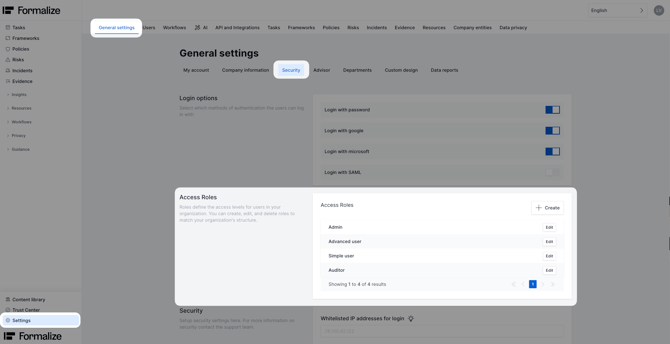
Navigate to your access roles section
- Log into your account and go to the Setting section.
- Select the General Settings → Security tab.
- Scroll down to the Access Roles section.
Types of permissions
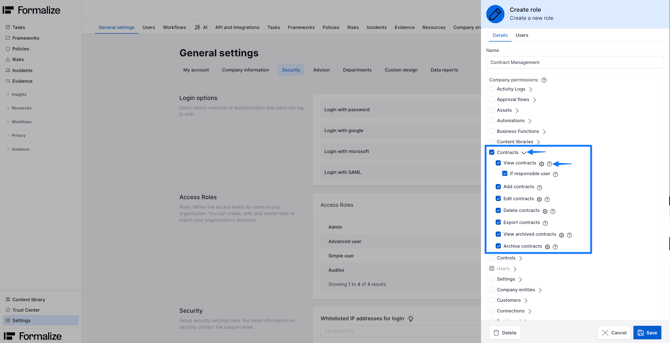
When defining or customizing roles, you can choose among several permission types depending on what level of access you want to grant.
- View: allow seeing content inside the module.
- Add: allow creating new items.
- Edit: allow editing existing items.
- Delete: allow deleting items from the archive.
- Export: allow downloading or exporting data.
- View archived items: allow viewing items inside the archive.
- Archive: allow removing items.
- Show module in sidebar: controls whether the module appears in the user’s navigation menu.
- View external respondents: allow access to responses submitted externally (e.g. external questionnaire responses).
- Conditional Permissions: restrict view/edit/delete rights to only those items for which the user is marked as the 'Responsible User'.
⚙️ Conditional permissions are available for: Assets, Business Functions, Contracts, Controls, Customers, Employees, Evidence, Incidents, Questionnaires, Policies, Processes, Processing Activities, Risks, Suppliers, Systems, and Tasks.
Pre-defined Roles
By default, Formalize includes four predefined roles: Admin, Advanced User, Simple User, and Auditor. Each role comes with a default set of permissions that determine what a user can do within the platform.
- Admin: Full access to all modules and permissions.
- Advanced user: Full access to all modules except managing users and accessing security settings.
- Simple user: Limited access. Cannot access Automations, Settings, Integrations, or the Public API.
- Auditor: Limited access. No access to Activity Logs, Approval Flows, Business Functions, Content Libraries, Contracts, Controls, Settings, Data Reports, Public API, or Views. Ideal for external or internal auditors.
How to Configure/ Create Access Roles
You can use the predefined access roles exactly as they are, adjust them to fit your needs, or create entirely new custom roles from scratch.
Editing an Existing Role
- Go to the Access Roles section.
- Click Edit on the role you want to modify.
- Select or deselect the permissions you want to change.
You can assign permissions by selecting the checkboxes for each module. Clicking the arrow next to a module expands additional permission options (e.g., view, edit, delete). - Click Save to confirm the updates.
- Under the Users tab, you can view all users currently assigned to that role.
Creating a New Role
- Click +Create.
- Enter a clear, descriptive name for the role.
- Choose the appropriate permissions by checking the boxes for each module.
Clicking the arrow next to a module expands additional permission options (e.g., view, edit, delete). - Click Save.
- Once created, you can assign the role to users either when creating a new user or by editing an existing user.
Assigning Roles to Users
When you create a user (or edit an existing one) you can assign them to any of the predefined roles, or any custom role you’ve created. The role determines what modules a user is allowed to see and what actions they can perform within each of these.
If you’d like more detail on user creation and assignment have a look at the following article: add link here
Why This Matters
Establishing access roles , whether by using default roles or creating custom ones, is key to:
- Ensuring that each user only sees and interacts with relevant modules and data.
- Maintaining security and data integrity by limiting permissions appropriately.
- Structuring user access according to responsibilities (e.g. who can edit, who can only view, who is allowed to delete, who manages settings).
- Flexibility: you can refine roles over time as organizational needs evolve.
Common Questions
- What happens if I change a role that is already assigned to a user?
Any updates you make to a role will automatically apply to all users who are assigned to that role. There is no need to update each user individually.
- Can someone who has permission to create users and assign roles change their own role?
No. Users cannot change their own role. Their role must be updated by another user who has the necessary permissions to manage user roles and access rights.
-
How do I manage multi-entity setups?
You can manage multi-entity environments by using conditional permissions within each module. This ensures that users only have access to view, edit, or delete the items for which they are designated as the Responsible User, keeping access restricted to their specific entity or scope.
by Lea Vietze, Solutions Engineering Team LeadWe hope this article was helpful and that you now have a clear understanding of Access Roles!
For any additional support, you are welcome to reach out with any questions by email, at support@formalize.com.