![Formalize-Logo.png]](https://support.formalize.com/hs-fs/hubfs/Formalize-Logo.png?height=33&name=Formalize-Logo.png)
Overview
The Data reports feature lets you design and export custom reports in Excel or CSV format. You can build each report from scratch, defining the exact structure and layout to match your organization’s needs.
Once created, your report is automatically populated with the relevant records from Formalize. This flexibility makes it easy to generate clear, targeted reports for stakeholders, using familiar formats and showing only the information you choose to include.
How to create a new Data report
You can find Data reports under Insights → Reports in the sidebar menu. To create an Excel/CSV file, stay on the first tab on the page and click Add data report.
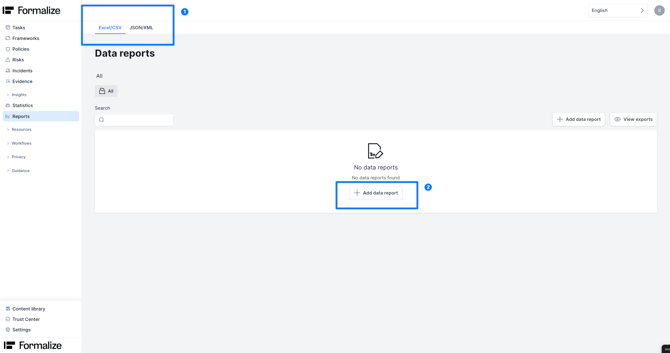
- Add a name to your report.
- Then choose the Source of your report from the dropdown menu. This will showcase all Formalize modules.
- If needed, you can add Filters to limit the scope of your report. The report will include only the records where the conditions defined are met.
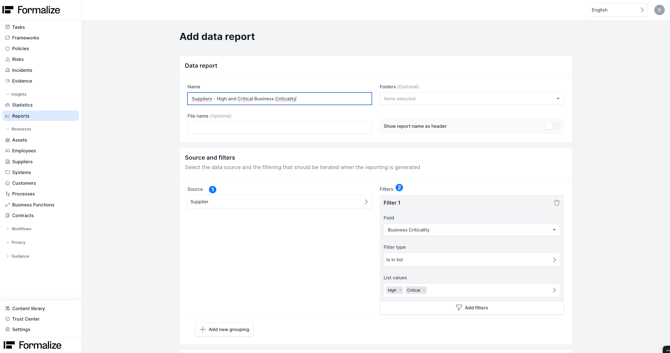
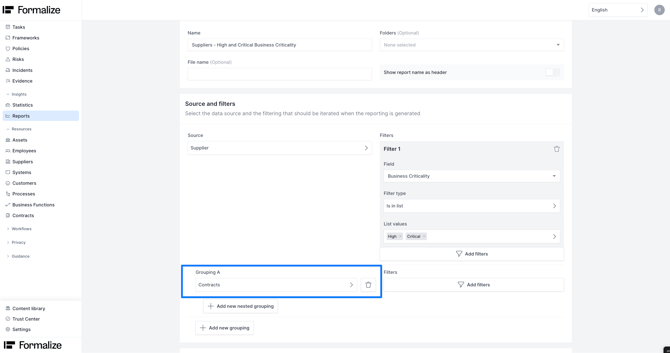
You can add Groupings by clicking on Add new grouping. This allows you to access fields from connections to your Source and generate a report containing fields from two or more Resources connected with each other.
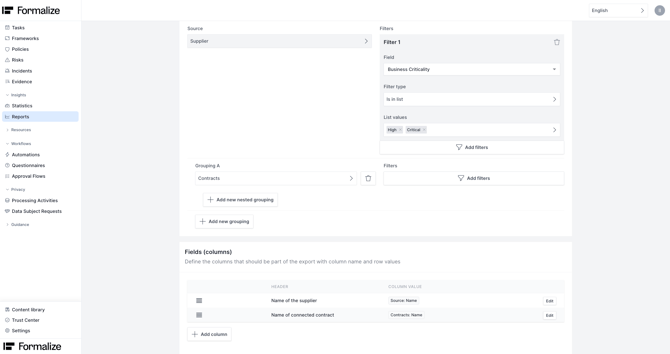
For a practical example, see below: the report is configured to export information on Suppliers with Business Criticality High and Critical and its connected Contracts.
How to create columns in your Data report
Once a Data report has been created, you can define which columns it will contain. The columns in the export will correspond to fields on the platform.
- Click on Add a column.
- Give a name to the column in Header.
- Select which field should populate this column, click on Source field and select the correct data point from the dropdown list.
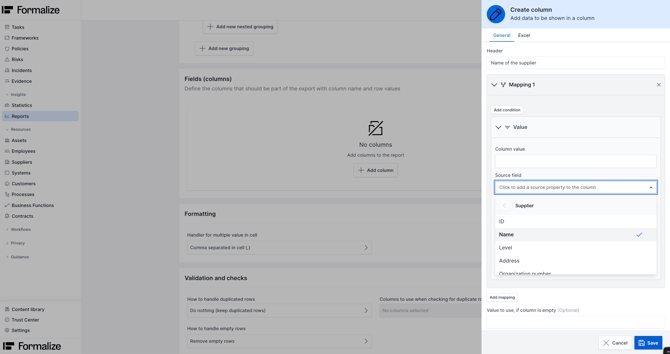
As a result to the steps above, the field Column value will be populated with the selected field.
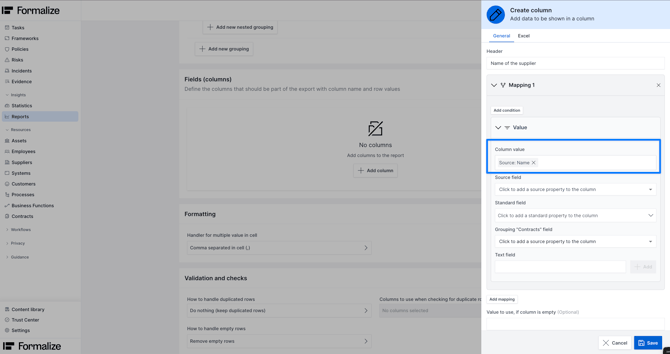
Add as many columns as the data points you want to see in the export by following the same steps as above.
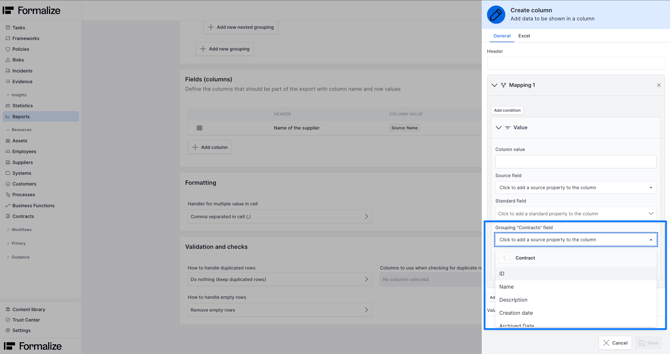
To add fields from the Grouping, follow the same steps as above, but select the field from Grouping rather than from Source as shown below:
Your Data report will look like this:
How to export
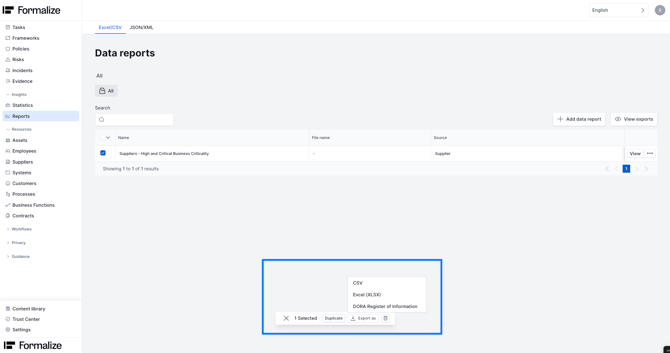
Once saved your Data report and added data to Formalize, you can export your file by navigating to Insights → Reports. Click on the checkbox next to your Data report and at the bottom of the page click on Export as. You can here select either Excel or CSV. A file will be downloaded to your device.
by Ilaria Iannaccone, Customer Enablement & Onboarding Team Lead
We hope this article was helpful in understanding how Data reports work!For any additional support, you are welcome to reach out with any questions by email, at support@formalize.com.