![Formalize-Logo.png]](https://support.formalize.com/hs-fs/hubfs/Formalize-Logo.png?height=33&name=Formalize-Logo.png)
Overview
The Policy Acceptance feature is your dedicated hub for managing how employees acknowledge and comply with organizational policies. Instead of manually tracking acknowledgments via email or spreadsheets, you can manage acceptance directly in the Policy module. From there, you can assign policies to specific employee groups, track who has accepted them, and automate notifications for new employees or updated policy versions.
This approach improves visibility, accountability, and compliance by giving each policy version a clear acceptance record.
How to Set Policy Acceptance
Policy Acceptance lets you track and manage which employees have acknowledged your organizational policies. It ensures that the right people receive, review, and confirm policies, providing clear records for compliance and accountability.
In Formalize, before sending a policy for acceptance, you must first map your employees under Resources → Employees.
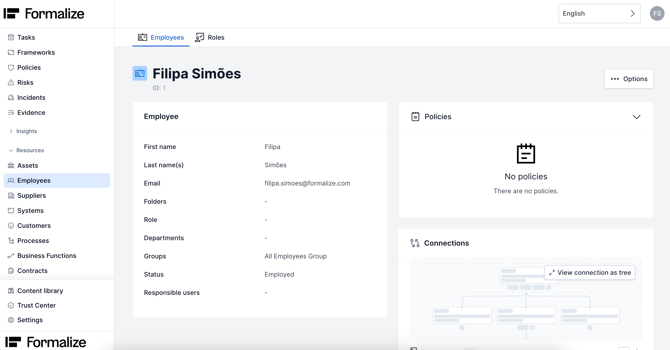
It’s very important to assign each employee to a group when creating them, as policy acceptance is sent based on these groups.
In the desired policy, go to Policy Settings → Acceptance and select the employee group that should be required to accept the policy.
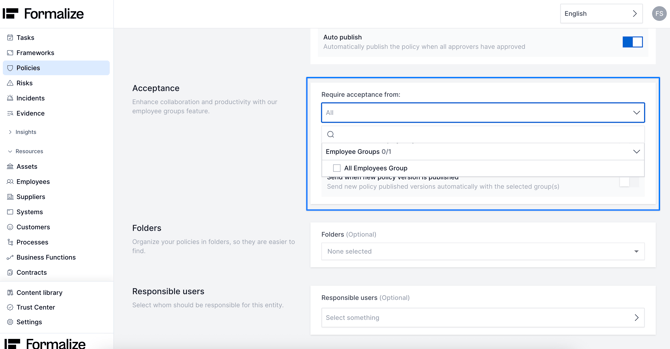
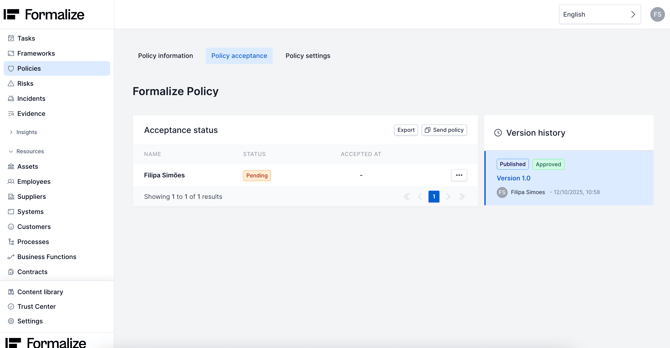
After saving this action, you can go to Policy Acceptance on the top of the page and in there you are able to see the list of employees tho whom the Policy will be sent and the status.
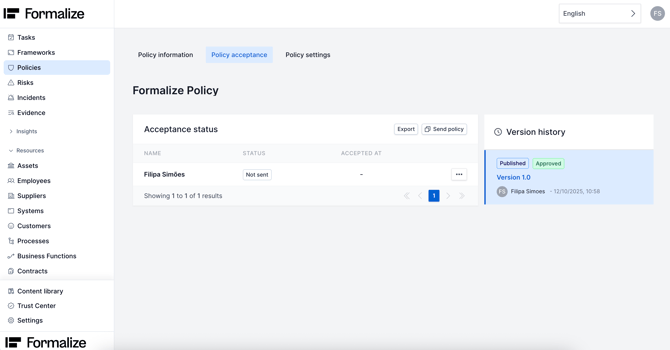
The next step is to click Send Policy. A pop-up will appear where you must choose who should receive the policy: employees who have not yet been sent the policy version, or employees who have not yet accepted the policy version.
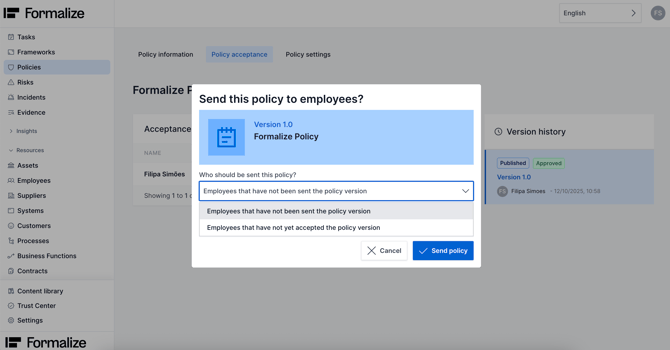
The policy is then sent, and you can view the acceptance status for each employee.
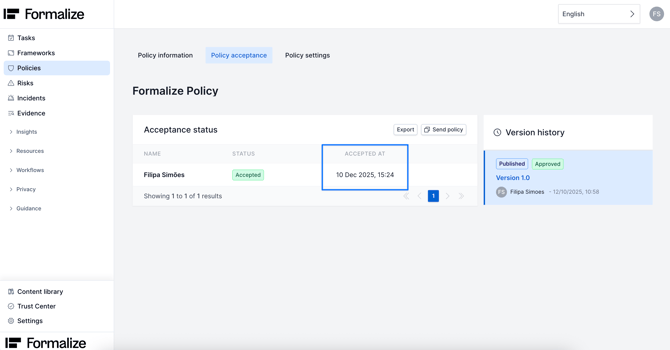
When an employee accepts the policy, the platform will show the date and time of acceptance.
How an Employee Accepts a Policy
The employee gets an email notification with an invite to accept the policy.
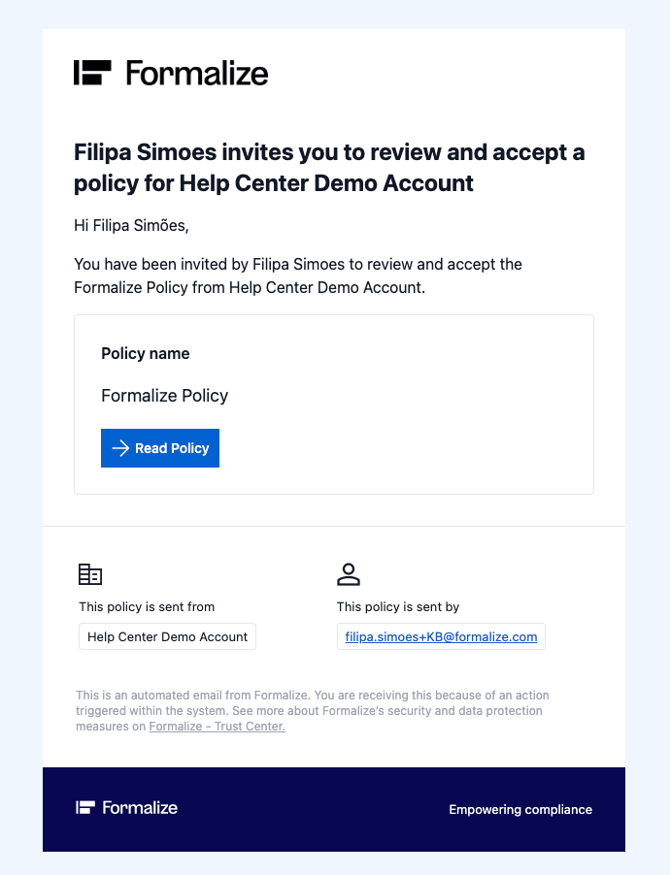
When the employee clicks Read Policy, they must verify their email address using a code sent to their inbox.
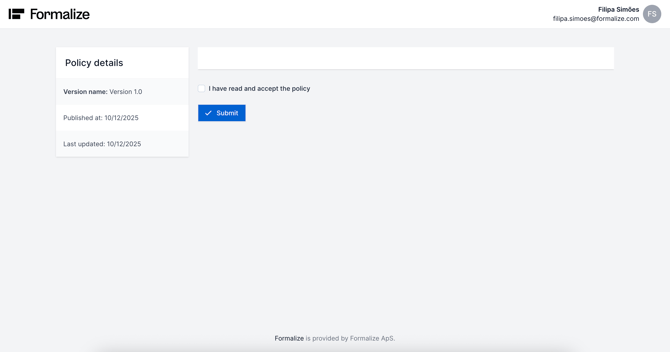
After reading the policy, the employee simply needs to check the box 'I have read and accept the policy' and click Submit.
by Filipa Simões, Customer Enablement Manager
We hope this article was helpful and that you now have a clear understanding of how to use the Evidence module in Formalize!
If you need additional support, you are welcome to reach out with any questions by email, at support@formalize.com.