![Formalize-Logo.png]](https://support.formalize.com/hs-fs/hubfs/Formalize-Logo.png?height=33&name=Formalize-Logo.png)
Login Options
Formalize supports several authentication methods, but all users must be created in the platform before they can log in using any of them. If you need help adding new users, see our user-creation article here.
By toggling the checkboxes, you can enable or disable specific login methods for your Formalize account.
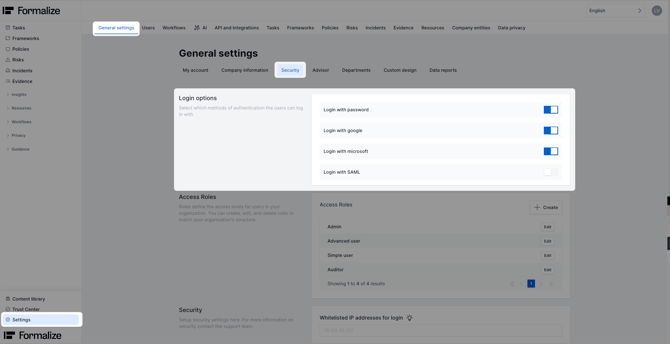
Email & Password Login
Email and password is the default login method. Passwords are stored securely using bcrypt (12 rounds) and must meet strong complexity requirements:
- Minimum of 12 characters
- Minimum 1 lowercase character
- Minimum 1 highercase character
- Minimum 1 number
- Minimum 1 symbol (eg #, &, or /)
- Not be used as the previous password
- Not be a compromised password
Login with Google or Microsoft
The OAuth 2.0 protocol for authentication is supported for Microsoft AD and Google. Buttons for Google or Microsoft sign-in will appear on the login page when enabled. Authentication provisioning is not available through OAuth, users must still be created in the system first.
Login with SAML
The SAML 2.0 protocol for authentication is supported for almost all identity providers. We
do not provide any default SAML 2.0 identity providers (IdP), as you can add and configure
new identity providers yourself. Notice that currently, only IdP-initiated authentication is
supported. This means that the user must first sign in to the identity provider before being
redirected to our system.
You can configure your own identity provider via SAML 2.0. Supported providers include:
- AWS
- Microsoft
- Ping Identity
IP Whitelisting for Login
You can restrict administrator access by whitelisting specific IP addresses. Admins can only log in from approved IPs, safeguarding the system from unauthorized remote access.
Multi-Factor Authentication (2FA)
2FA adds an additional verification step during login. Users enter their password and then confirm their identity using a one-time code sent via SMS.
Administrators can:
- Allow users to enable 2FA individually, or
- Enforce 2FA for all users at first login. This is done here in the settings toggling the checkbox
Security Logs
System logs record security-related events, including login activity. You can view successful and unsuccessful login attempts, along with details explaining any failed attempts.
Each system log entry includes user ID, user email, date and time, IP address, event type, user agent.
by Lea Vietze, Solutions Engineering Team Lead
We hope this article was helpful and that you now have a clear understanding of Security Settings!
For any additional support, you are welcome to reach out with any questions by email, at support@formalize.com.