![Formalize-Logo.png]](https://support.formalize.com/hs-fs/hubfs/Formalize-Logo.png?height=33&name=Formalize-Logo.png)
Managing Users: Adding & Editing
Add a New User
- Log in and navigate to the Users menu (Settings → Users)
- Click Options and + Add User to add a new user.
- Fill in required details: name, last name, and email address of the person you want to invite.
- Choose an Access Role for the user, check our article on configuring access roles here.
- Click Next. Here, you can customize the email invitation the user will receive, choose the language and optionally add a personal message.
- Click Create. The user will receive an email invitation form hello@formalize.com within a few minutes and can then set up their new account.
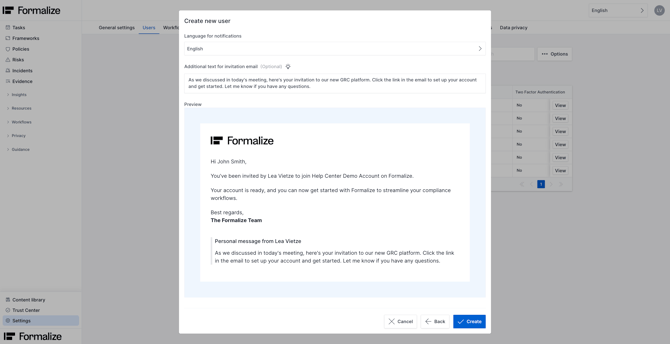
Once invited, the new user can access Formalize according to the permissions you set.
Edit or Update an Existing User’s Permissions
- Navigate to the Users menu and select the user you wish to modify by clicking View.
- Change their user information or adjust permissions as needed.
- Save the changes; the user's access will be updated in real time.
Disabling and Deleting a User
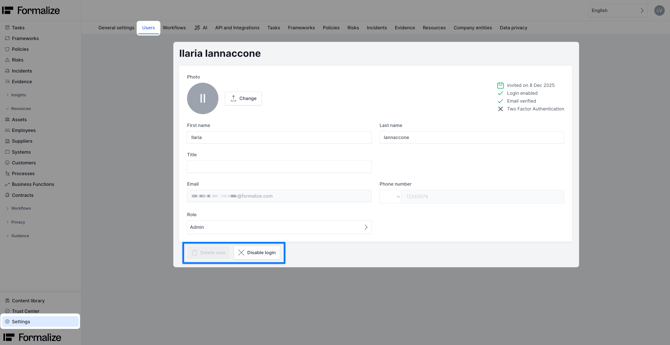
You can disable a user from their individual user profile. When a login is disabled, the user will no longer be able to access the account.
Once a user has been disabled, you can permanently remove their access by clicking Delete user. After a user is deleted, they will no longer receive notifications or updates, and they will be removed from all items in the account where they were assigned as the Responsible User.
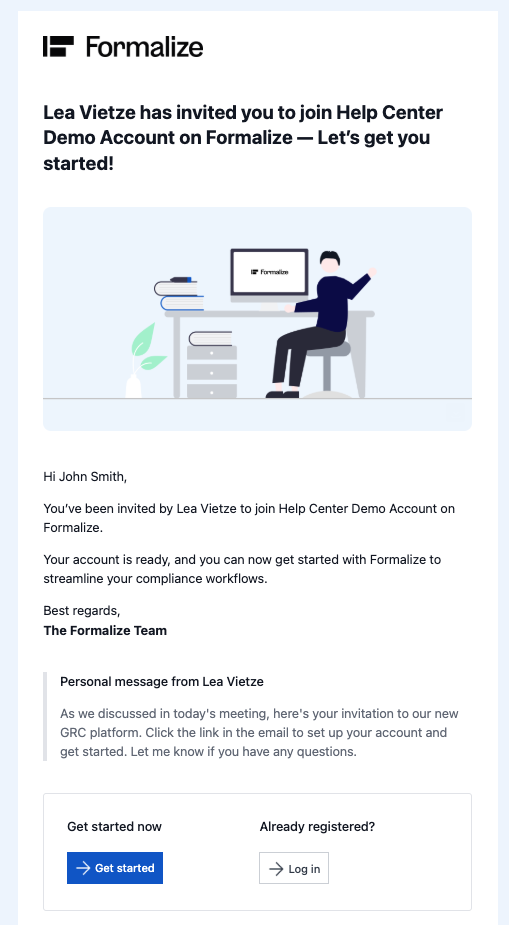
From the recipient's point of view
The user will receive an invitation email from hello@formalize.com and can begin by clicking Get Started. They will then be prompted to set up their account by creating a password.
Once completed, the user’s account is fully created and their email address is verified.
Common Questions
- What is the difference between Users and Employees?
Users have access to the back office and the platform's settings, allowing them to interact with the system based on assigned permissions.
Employees are listed in the platform as resources with their records saved, but they do not have access to the account itself. They are primarily used for record-keeping and managing access to policies or questionnaires, ensuring that only individuals on the employee list can access specific content when the "employees only" setting is enabled. - Can someone who has permission to create users and assign roles change their own role?
No. Users cannot change their own role. Their role must be updated by another user who has the necessary permissions to manage user roles and access rights.
-
How do I manage multi-entity setups?
You can manage multi-entity environments by using conditional permissions within each module. This ensures that users only have access to view, edit, or delete the items for which they are designated as the Responsible User, keeping access restricted to their specific entity or scope.
by Lea Vietze, Solutions Engineering Team Lead
We hope this article was helpful and that you now have a clear understanding of User Management!
For any additional support, you are welcome to reach out with any questions by email, at support@formalize.com.