![Formalize-Logo.png]](https://support.formalize.com/hs-fs/hubfs/Formalize-Logo.png?height=33&name=Formalize-Logo.png)
Overview
The Frameworks section in Formalize lets you build custom or use pre-built compliance frameworks that reflect your organization's needs and requirements. Frameworks and related moduled allows to management, auditing, and reporting more coherent and structured.
In this article we will look at how to:
- Do the Statement of Applicability,
- Document the implementation level of controls,
- Map Overlapping Controls
- Define Control Statuses for the purpose of Risk Management.
How to do the Statement of Applicability
Frameworks reside in the sidebar menu, under Tasks. Here you will see all Frameworks in your account, organised in tabs. You will find here both frameworks from the Content Library and your custom frameworks.
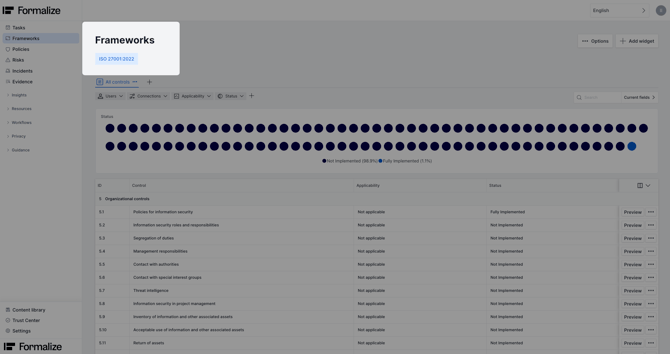
Frameworks are composed of Controls. Within each Framework there is a waffle chart showcasing the level of implementation of applicable Controls. To modify the Controls, and document their Applicability and Status, click on the relevant Control → Options → Edit. 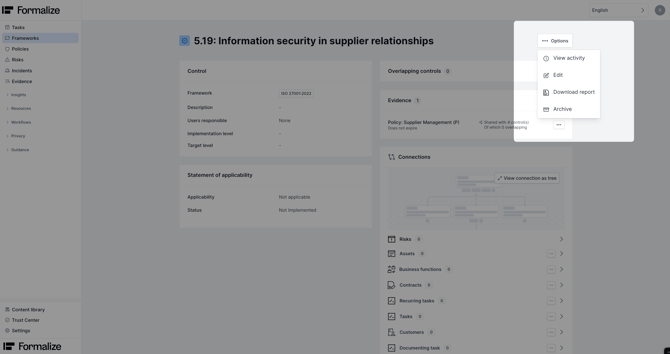
Related articles:
- See our Fields article for further guidance on how to use custom fields.
- See our Dashboards article for guidance on how to customise the waffle chart.
How to create a Custom Framework
You can use our ready-made content from the platform’s Content Library or add your own custom framework. To add custom Frameworks and Controls, navigate to Settings → Frameworks. Scrolling towards the bottom of the page you find Control frameworks.
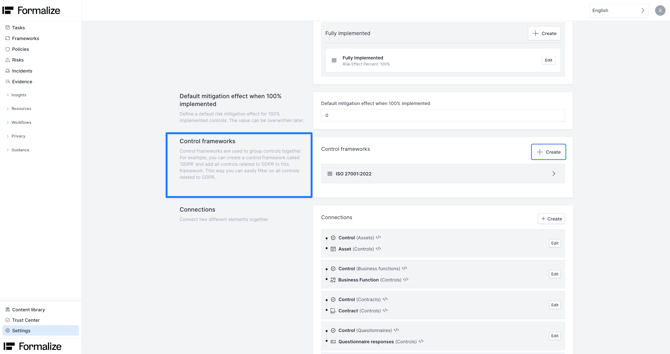
- Click on Create, give a name to your Custom Framework.
- Organise its structure by adding Groups. When creating a Group, give it a Name and a numeric Identifier.
- Within the group, click on the + to add a Control. Once again, give it a Name and a numeric Identifier.
Save your progress and move to the Frameworks tab in the sidebar menu. You will be able to see here how your custom Framework looks. Seeing how the configuration renders will help you in definying the naming convention of your Controls and Groups.
How to map Overlapping Controls
When having two or more Frameworks, some Controls might contain similar or identical requirements (for example DORA and ISO27001). We call these Overlapping Controls. In order to map overlaps start from a Control:
- Click on Add next to Overlapping Controls.
- Now define the degree of overlap, by selecting either Partial or Full Overlap. You can leave a comment to document the mapping.
From now on when you are editing a Control, after saving your changes, the platform will prompt you to update Overlapping Controls. Here you can define whether the changes made in the first Control should apply to the Overlapping Control. Specifically, you can define whether edits to Applicability, Status and Evidence should be inherited by the Overlapping Controls.
This approach reduces duplicate work and ensures consistent audit documentation and evidence across multiple frameworks.
How to define Control Status
Controls are commonly used as part of your risk mitigation process. The level of implementation of a control can be used to influence and reduce the risk score, helping you reflect how effective a control is in practice.
By default, control statuses include three options:
- Not implemented (Risk Effect Percentage: 0%)
- Partially implemented (Risk Effect Percentage: 50%)
- Fully implemented (Risk Effect Percentage: 100%)
These options can be edited in Settings → Frameworks → Control statuses → Edit.
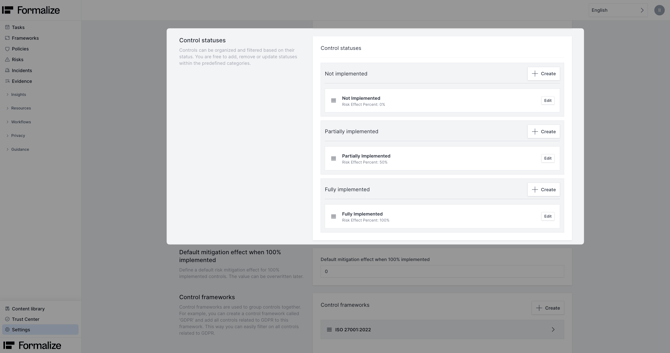
In Settings, you can also define a Default mitigation effect when the Control is Fully implemented. This will give the Control a default mitigation effect. OBS: this value can be overwritten during the mitigation.
Related articles:
- For guidance on how to do risk mitigation on Formalize, see our Mitigation article.
Common Questions
- Can I add Custom Fields to Controls?
Yes, just like other Resources in Formalize, you can add Custom Fields in Controls. You can choose if they should appear in the body of the Control or in the Statement of Applicability Section. Navigate to Settings → Frameworks and find the two sections. Take a look at our Fields article for more. - What is the difference between Evidence and Connections?
Look at Evidence as a library, where you store records that can be attached to one or several Controls to document implementation. Connections mark dependencies or relations rather than documentation.
by Ilaria Iannaccone, Customer Enablement & Onboarding Team Lead
We hope this article was helpful and that you now have a clear understanding of how to work with Frameworks and Controls!For any additional support, you are welcome to reach out with any questions by email, at support@formalize.com.