![Formalize-Logo.png]](https://support.formalize.com/hs-fs/hubfs/Formalize-Logo.png?height=33&name=Formalize-Logo.png)
Overview
The Statistics module allows you to create dashboards that serve as dynamic, real-time overview pages. These dashboards provide an intuitive way to monitor what’s happening across your organisation by consolidating information from multiple areas of the platform into a single interface.
By combining key data from other modules within Formalize, you can build customised dashboards that provide a clear view of your organisation’s compliance and operational health. This consolidated perspective enhances visibility, making it easier to recognise trends, detect emerging issues, and make informed decisions.
How to add a new dashboard
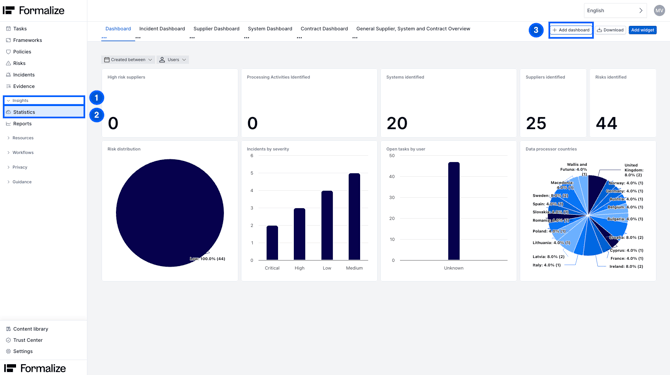
1. Navigate to the Statistics module
- Go to the Insights section and click on the Statistics tab
- Click on Add dashboard
2. Create a new dashboard
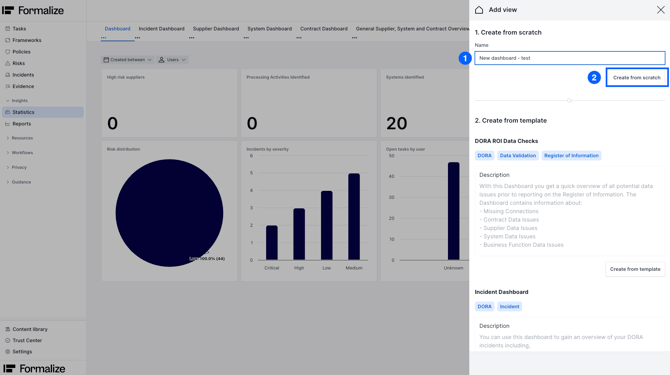
From here you have two options: create a dashboard from scratch, or create from template.
- Create from scratch: this creates an empty dashboard, with no preconfigured widgets.
- If this is your preferred option, give the dashboard a name and click on Create from scratch to create your new dashboard.
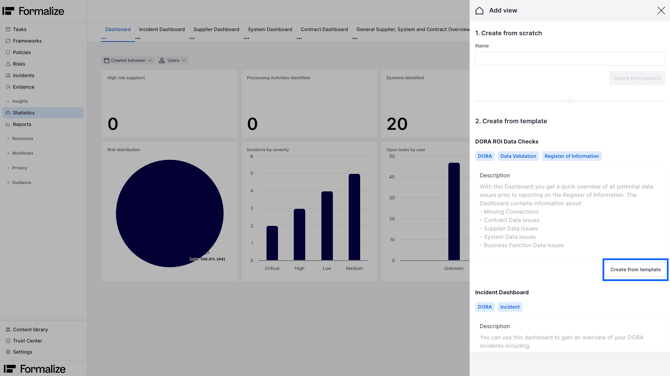
- Create from template: we provide several preconfigured dashboards that may already meet some of your needs. Each template includes tags to indicate the situations or use cases it’s best suited for, along with a description that gives you a more detailed understanding of what the dashboard shows and how it can be used.
You can use these dashboards as they are, or as a starting point to adapt them to your specific needs.
-
-
If you would like to use one of our templates, choose the one that better fits your needs and click on Create from template.
-
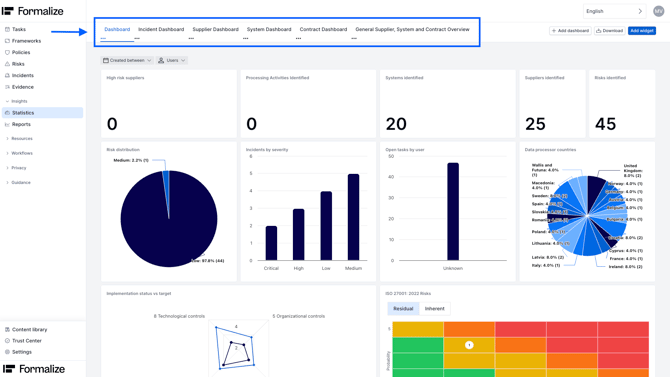
You can create as many dashboards as you need, and each one will appear as its own tab in the top bar. Simply click the corresponding tab to open and view your dashboard.
How to delete a dashboard
To delete a dashboard, click the three dots on its tab in the top bar and select Delete.
Types of widgets
A widget is a small, configurable visual element that displays a specific piece of information. Each widget focuses on one type of data or insight—for example, a chart, a number, or a list.
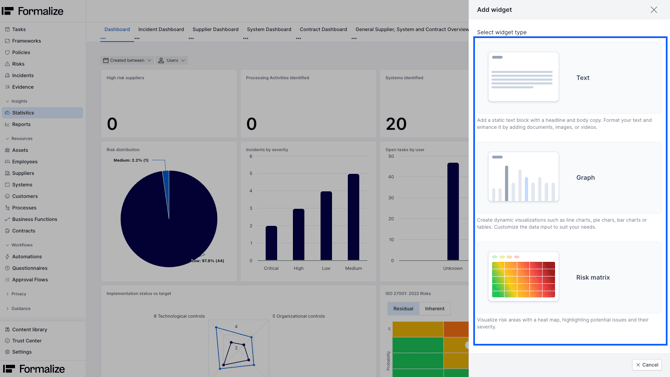
You can create different types of widgets for your dashboards:
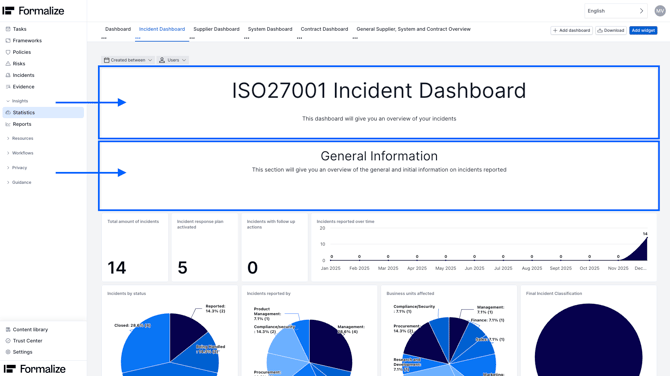
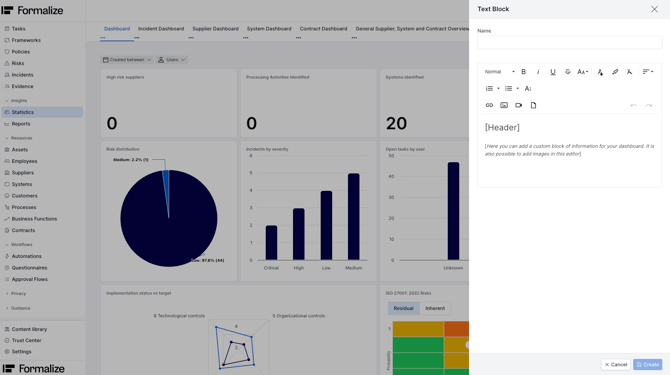
- Text: add a static text block with a headline and body copy. Format your text and enhance it by adding documents, images, or videos.
-
Graph: create dynamic visualizations such as line charts, pie chars, bar charts or tables. Customize the data input to suit your needs.
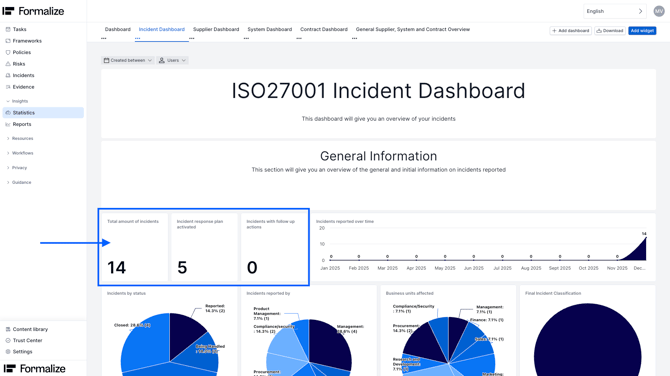
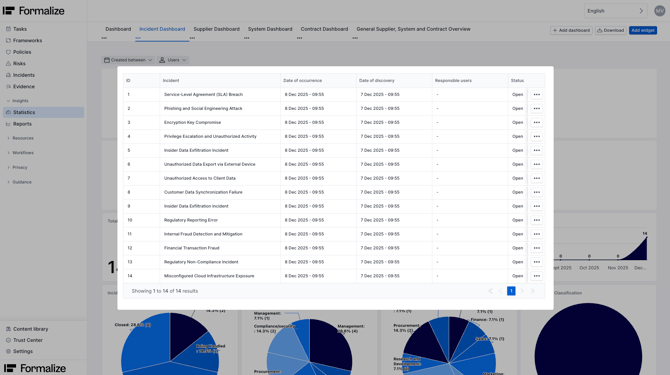
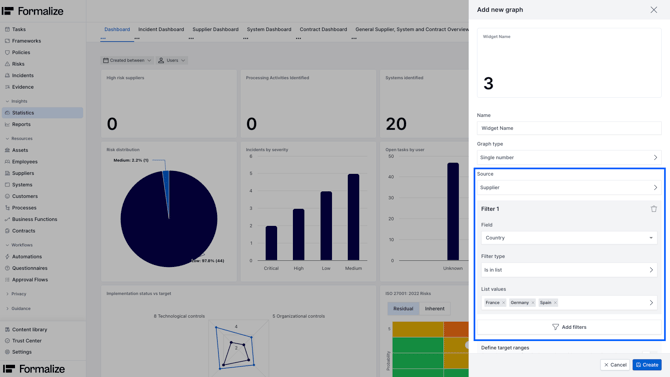
- Single number: this widget shows a single value that represents the total number of elements in the platform that meet your specified criteria. By clicking on the number, you can view a detailed list of all the elements that match your criteria, making it easy to locate and review individual items directly within Formalize.
-
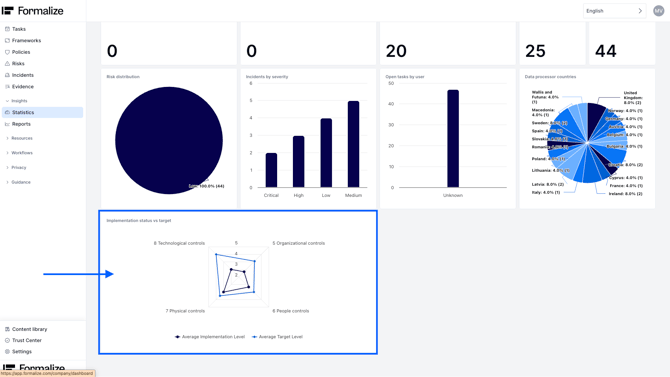
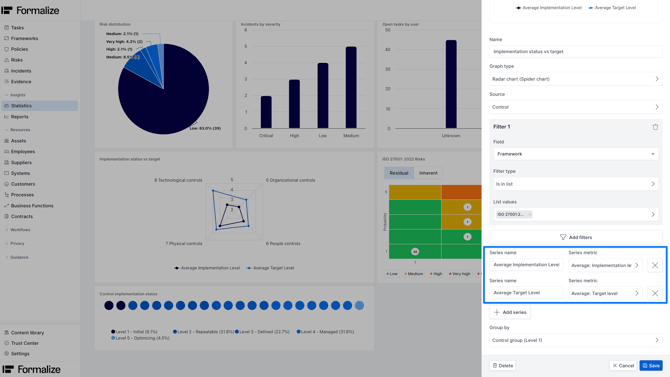
- Radar chart (spider chart): this widget shows multiple variables on a circular, web-like chart, allowing you to compare different elements across several criteria at once.
-
- Line chart: it displays data points connected by a line to show trends over time.
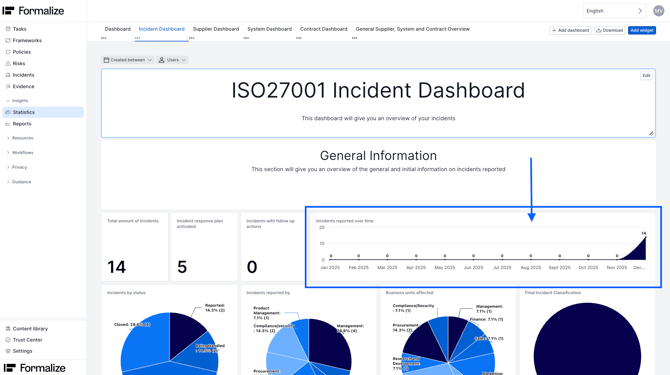
-
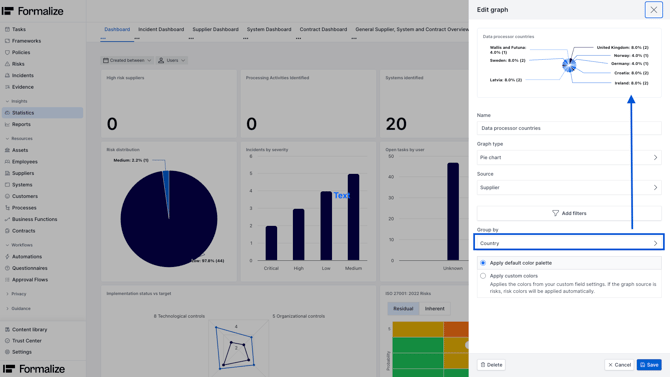
- Pie chart: this widget displays data as slices of a circle, showing how different categories contribute to a whole. It is especially useful for visualising proportions and relative sizes
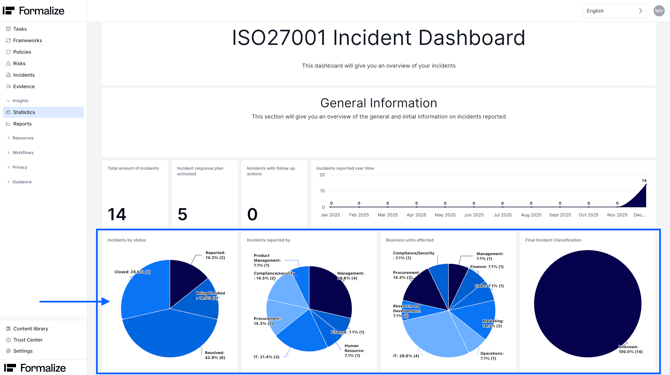
-
- Bar chart: it uses vertical bars to compare values across different categories.
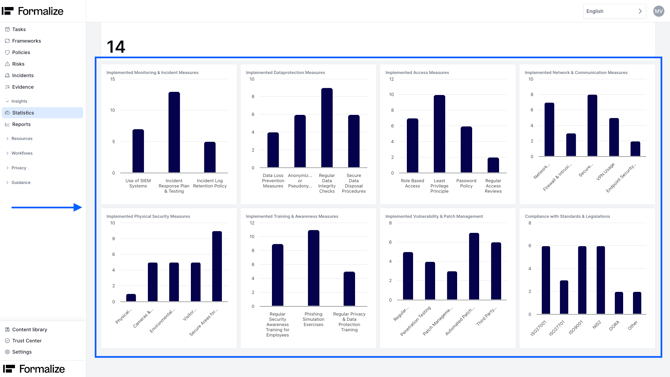
-
- Waffle chart: this widget represents data using small circles, with each circle showing a portion of the whole.
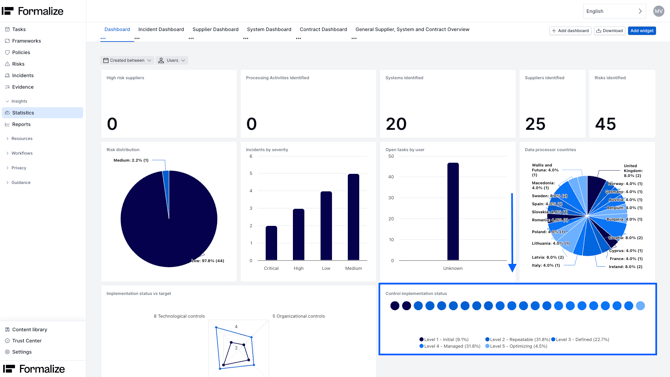
-
- Table: this widget lets you display a list of elements in a structured table format, similar to the views found in the Resources modules. You can apply filters to show only the items that meet your selected criteria, making it easy to focus on the most relevant information.
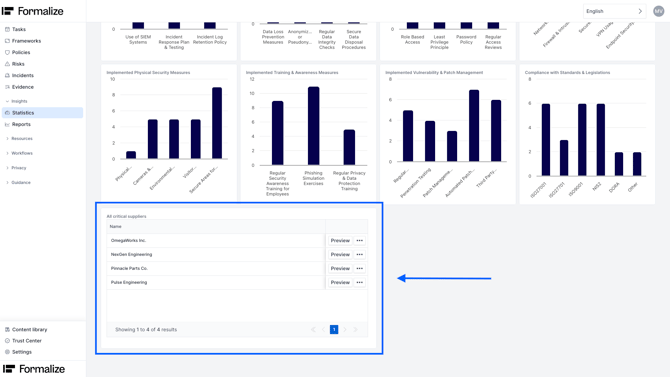
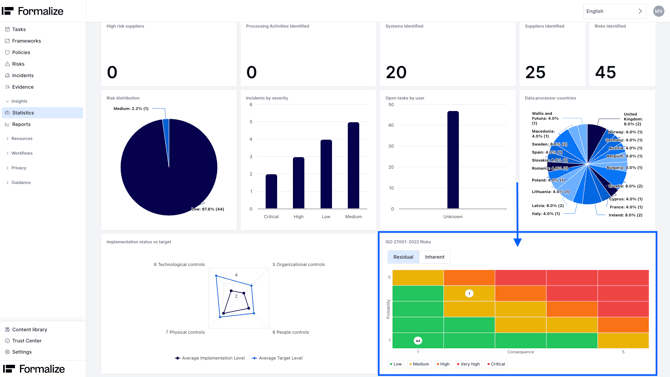
- Risk matrix: visualize risk areas with a heat map, highlighting potential issues and their severity
How to create a widget
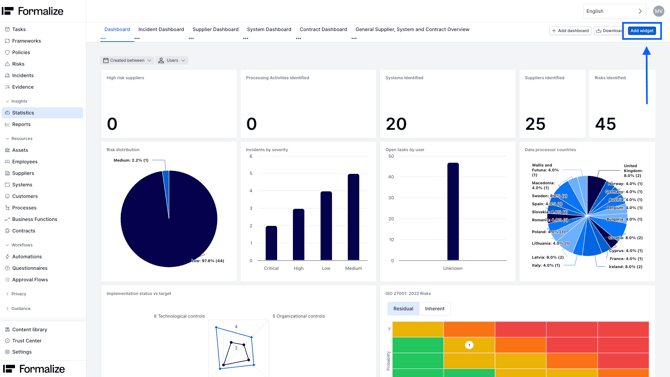
1. Go to the dashboard where you would like to create the widget and click on Add widget
2. Select widget type (see more info about the different types above, inside of the section "Types of Widgets")
3. Depending on the widget type selected, the next step will look a bit different:
- Text: Enter your desired text into the text box, format it as needed, and click Create.
- Graph: Give the widget a name and select a graph type. Based on the graph type selected, you will have to fill in different fields:
- Fields that apply to all graph types:
- Source: here you can select from which of the modules of Formalize the widget should take the information.
- Add filters (Optional): you can add filters to make sure that you only get the information about the elements that follow your desired criteria. You can apply as many filters as you need by clicking on "Add filters".
- Fields that apply to all graph types:
-
- Specific fields for radar charts:
-
Series name and Series metric: here you can select which are the criteria that you want to compare. An example would be comparing the implementation level vs the target level of a group of controls.
The following metrics are currently available inside of Series metric:
-
Minimum, average, maximum, and sum for custom single/multiple select fields and numeric calculations
-
Count of elements
-
-
- Specific fields for radar charts:
-
- Specific fields for pie chart, bar chart, radar chart and waffle chart:
- Group by: this setting determines how your data is sorted into distinct categories for the chart. When you choose a field to group by, the chart creates one segment or bar for each value in that field
- Specific fields for pie chart, bar chart, radar chart and waffle chart:
-
-
- Apply default colour palette or apply custom colors:
If you choose “apply default colour palette”, the chart will automatically use different shades of blue for each category. This is the colour scheme shown in the examples throughout this article.
If you’ve assigned specific colours to the options in the single or multiple select field you’re using for the group by setting (see our Custom fields article for how to do this), you can select “apply custom colours”. This will colour each category according to the values you defined.
- Apply default colour palette or apply custom colors:
-
- Specific fields for radar charts:
-
-
-
Series name and Series metric: here you can select which are the criteria that you want to compare. An example would be comparing the implementation level vs the target level of a group of controls.
The following metrics are currently available inside of "Series metric":
-
Minimum, average, maximum, and sum for custom single/multiple select fields and numeric calculations
-
Count of elements
-
-
-
4. Once you’ve filled in all the relevant fields for your widget, click Save to add it to your dashboard.
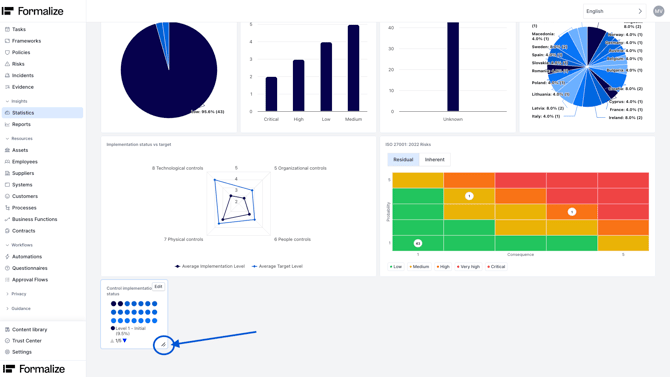
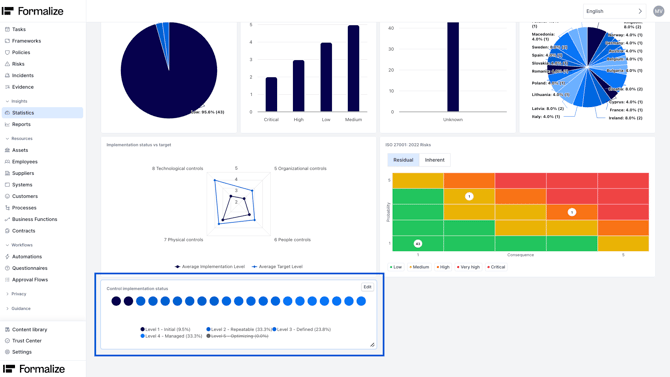
5. By default, the widget appears at the bottom of the dashboard and occupies a single square. You can resize and reshape it by hovering over the widget, selecting the small diagonal lines in the bottom-right corner, and dragging to adjust its size.
How to edit a widget
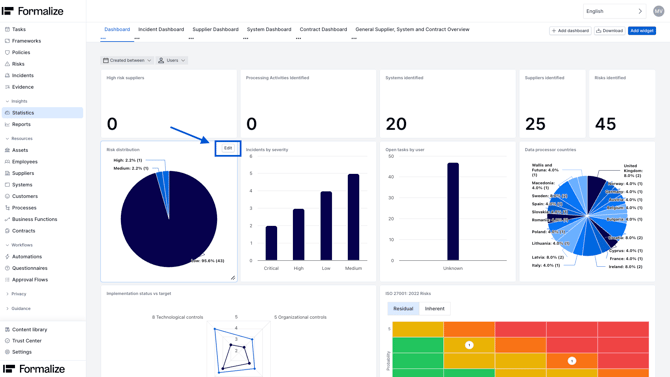
If you need to edit a widget, simply hover over it and click Edit.
by María Amparo Soriano Varela, Customer Enablement ManagerWe hope this article was helpful and that you can now create Dashboards on your account!
If you need additional support, you are welcome to reach out with any questions by email, at support@formalize.com.